Timeline List View
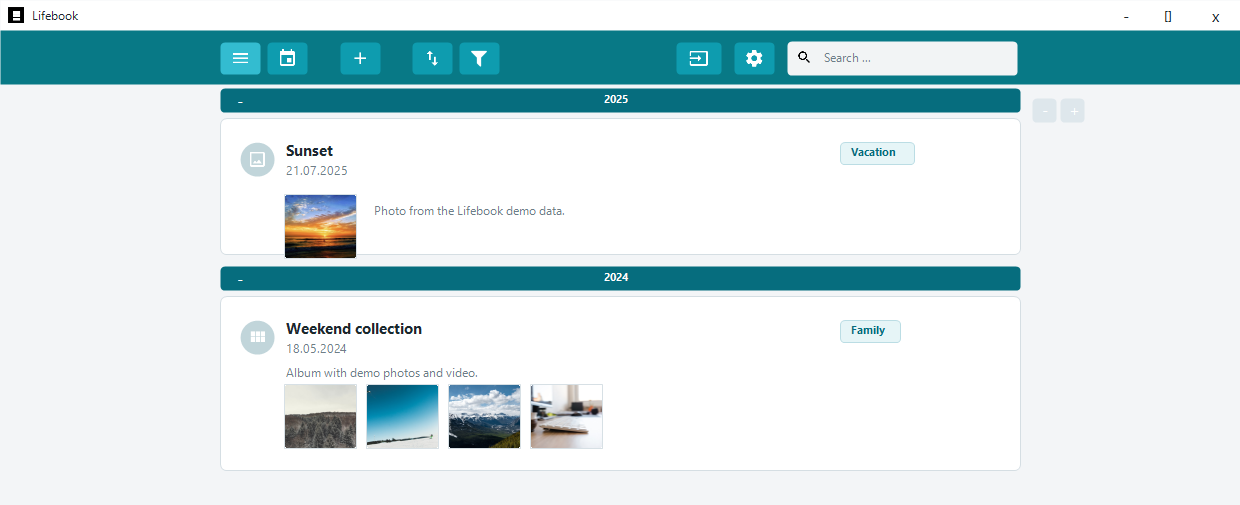
The timeline list is the main browsing view. It groups entries by year and shows each entry as a card.
Year Groups
Entries are grouped under year headings. You can expand or collapse a year group with its header.
Use the global expand and collapse buttons to open or close all year groups.
Right-click a year header to delete all entries from that year. Lifebook asks for confirmation before removing them.
Entry Cards
Cards show the entry type, title, date, preview, and tags when available. Previews adapt to the entry type: text teaser, image thumbnail, compact media player, or album thumbnails.
Select a card to open it in the overlay view. You can also open the selected entry with Enter.
Card Actions
Move the pointer over a card to show quick actions:
- Expand or collapse the card preview.
- Show the entry in the calendar.
- Edit the entry.
- Delete the entry.
Text entries can expand to show more text in the list. Photo albums can expand to show more album content.
Context Menu
Right-click an entry card for actions such as edit, show in calendar, move to collection, or delete. Moving one collection into another transfers its contents.
Tags on Cards
Select a tag on a card to filter the list by that tag. This is a quick way to see all entries connected to the same topic.
Scrolling
Use the mouse wheel or keyboard to move through the list. Lifebook keeps the current year visible while you scroll.
Sorting
Use the sort button in the main menu to toggle the timeline between newest-first and oldest-first order.
The arrow on the sort button shows the current order.
Search Results in the List
Search results highlight matching titles and text, show matching tags where useful, and open year groups that contain matches.
See Search and Filters.