Lifebook
Lifebook User Manual
Find your way around Lifebook
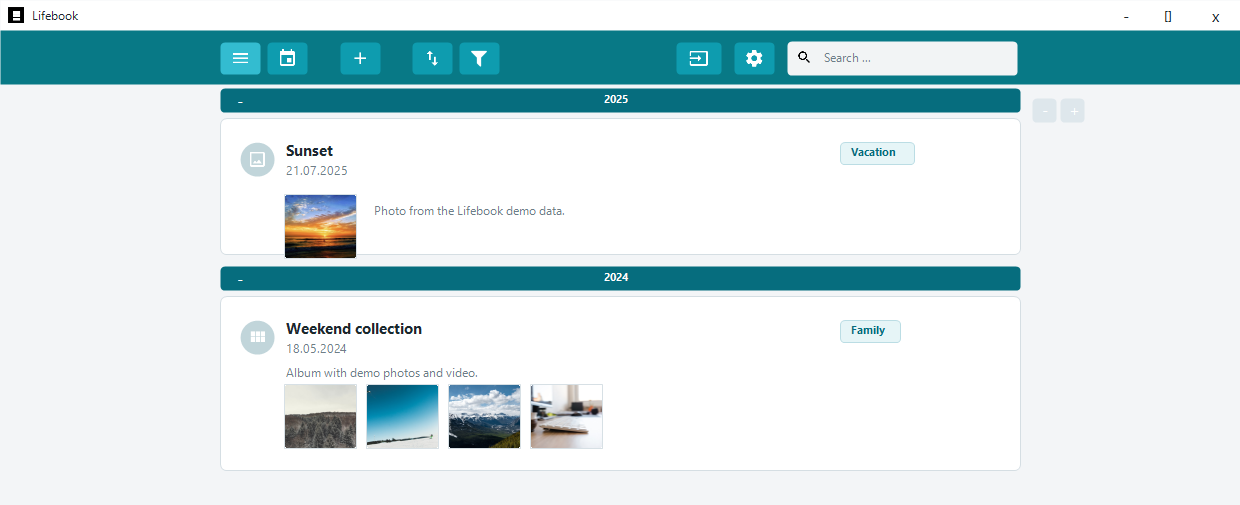
Learn the main Lifebook workflows: add memories, browse the timeline, use the calendar, find entries with search and filters, then back up or export your archive when you need readable copies.
Windows-native Local data No cloud required 50-entry free trial Word, PDF, HTML, and TXT export
Manual Guide
Basics
- Getting Started: first launch, demo data, trial limits, and the basic workflow.
- Main Menu: the top row of buttons, search, import, settings, and playback controls.
- Keyboard Shortcuts: shortcuts grouped by screen.
Browsing Entries
- Timeline List View: year groups, entry cards, card actions, context menus, and scrolling.
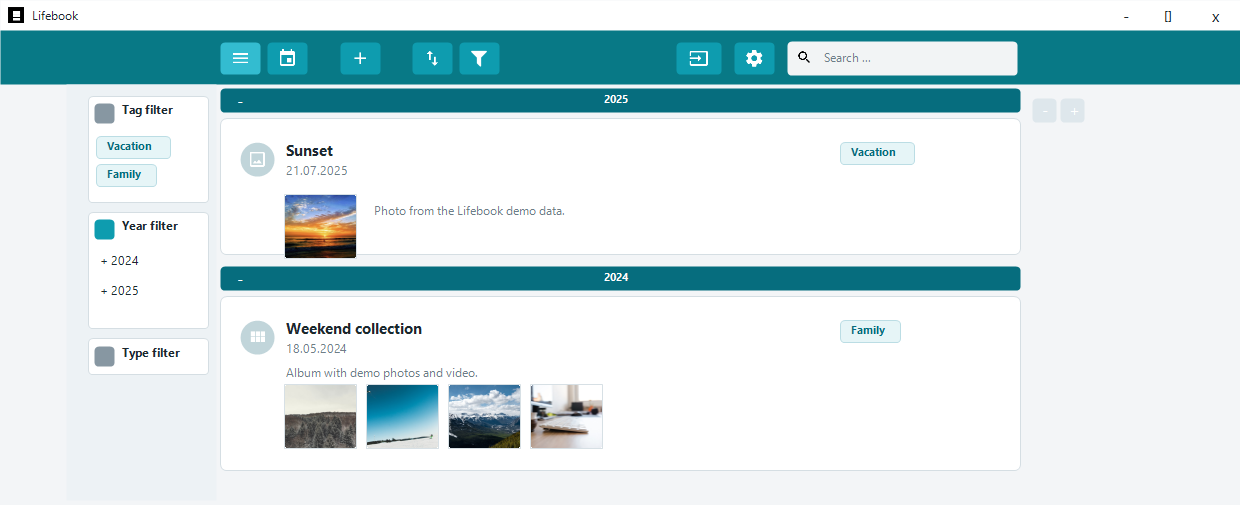
- Search and Filters: full text search, type search, tags, years, months, type filters, and people.
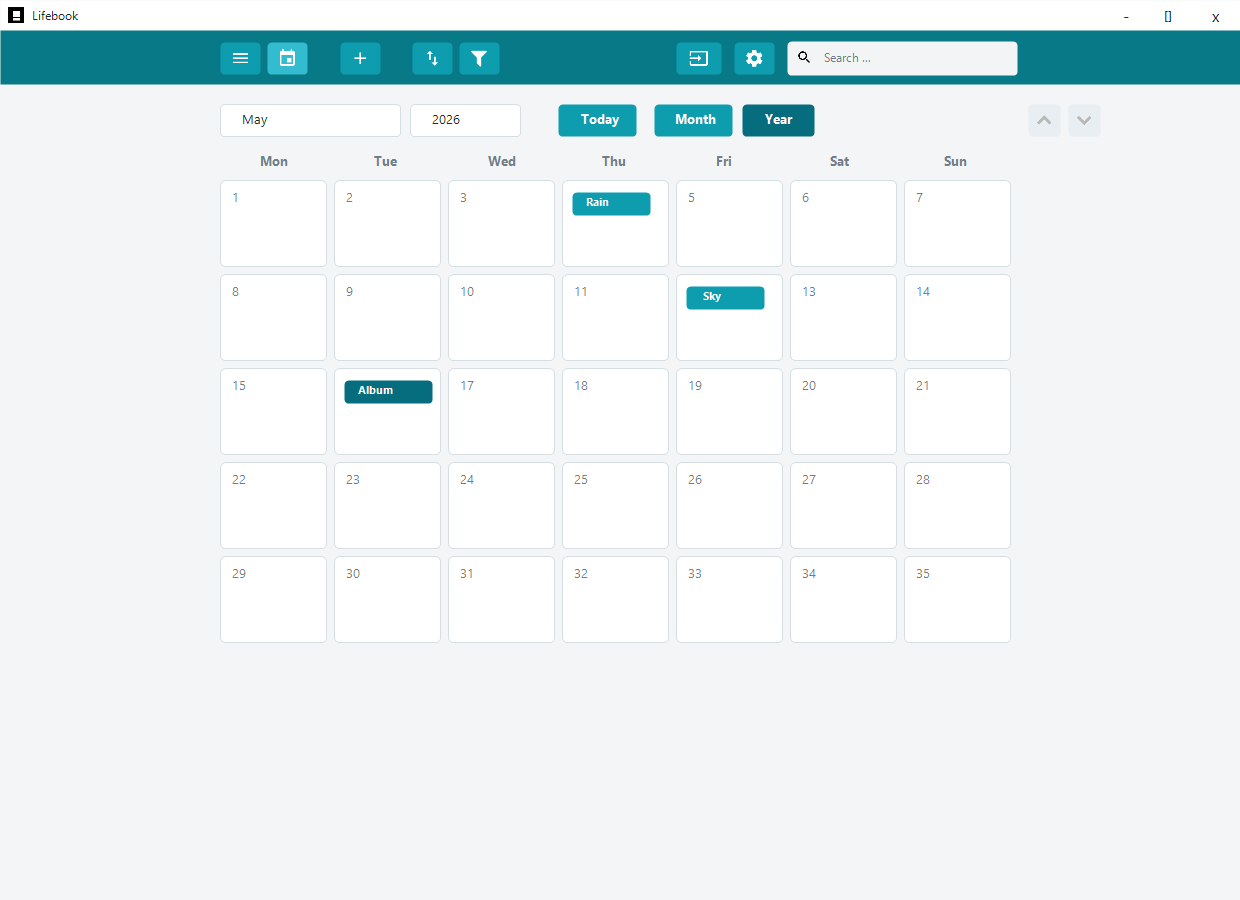
- Calendar View: month view, year view, today, and adding entries from a day.
- Photo Albums and Collections: album display, moving entries, reordering, and converting entries.
- People and Faces: face recognition setup, naming and confirming people, merge suggestions, hiding people, and filtering by person.
Entry Detail and Editing
- Overlay View: the full entry view for reading, playing, navigating, and recovering missing files.
- Edit Mode: changing titles, dates, captions, tags, text content, images, and collections.
- Adding Entries: creating new text, image, video, audio, and album entries.
Data and Settings
- Import and Export: supported files, folders, calendars, Lifebook backups, and document export.
- Settings: search, app statistics, face recognition controls, backups, file-copy choices, calendar import, appearance, help, license, and contact.
- Privacy Policy: how Lifebook handles local storage, dictation, optional downloads, and manual website analytics.
- Troubleshooting: common messages and what to do next.
Why Lifebook
Multimedia Journaling
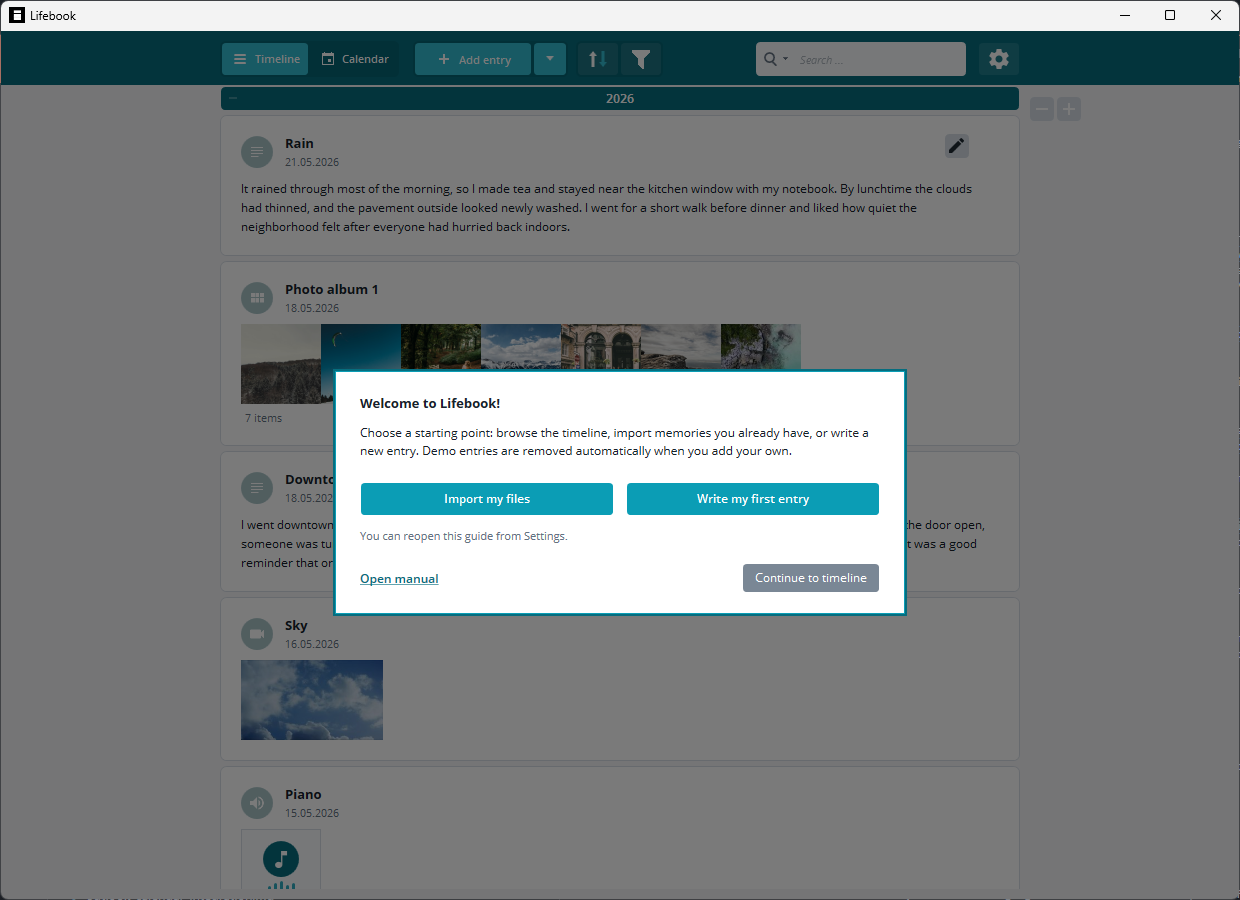
Combine text entries, photos, videos, audio recordings, documents, calendar events, and photo albums in one personal timeline.
Chronological Organization
Unlike general note apps, Lifebook is centered on dates, seasons, years, and the way memories connect over time.
Searchable Memory Archive
Use titles, captions, full-text search, tags, media filters, year groups, month filters, and calendar browsing to find related entries.
Local Data and Export
Your Lifebook archive stays on your Windows device. Backups and Word, PDF, HTML, or TXT exports help you keep readable copies under your control.
Screenshots
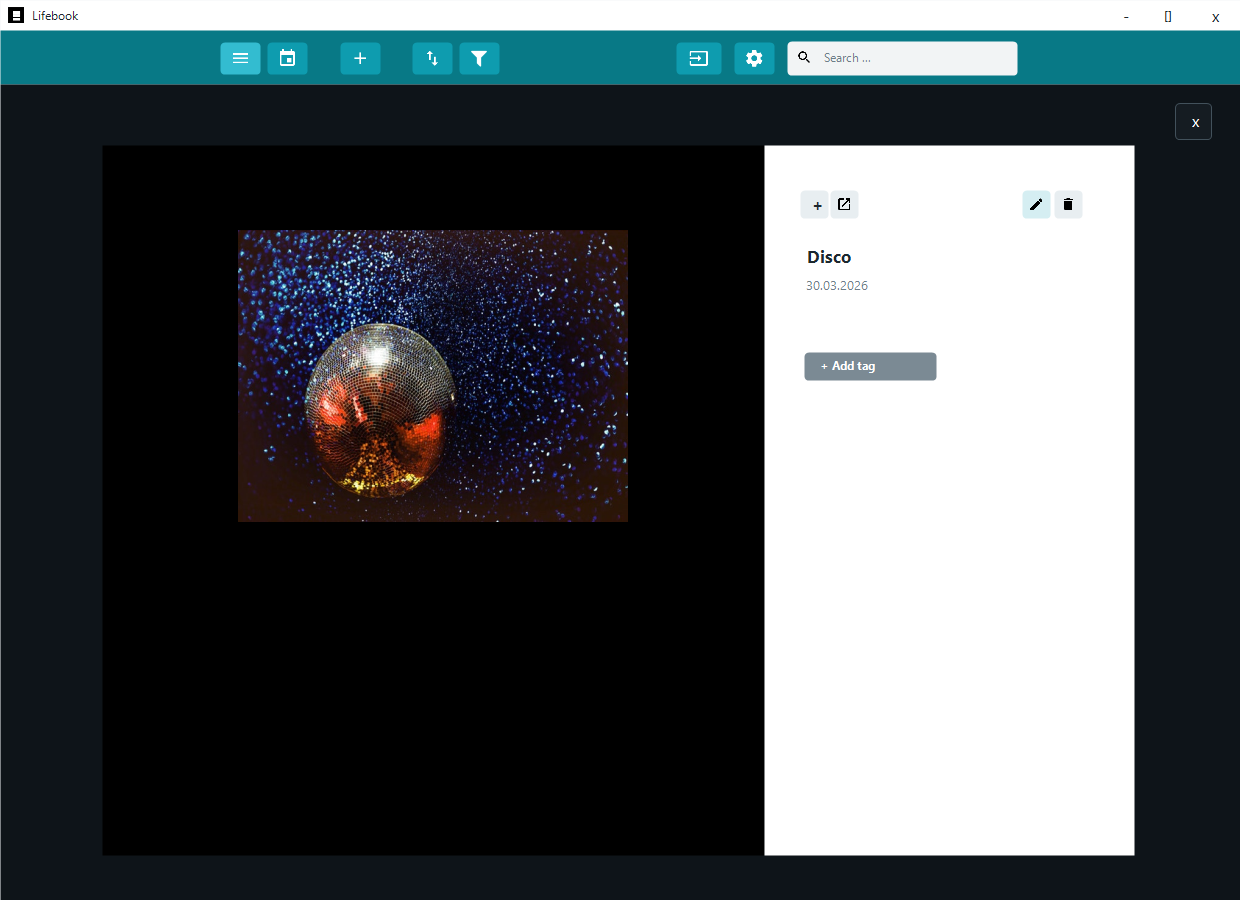
Common Uses
Lifebook is useful when your memories or research are more than plain text:
- personal journals and life logs
- family memory archives
- travel diaries with photos, videos, and notes
- project journals and research documentation
- creative timelines for stories, collections, or long-running ideas
- private archives that need backup and export options
Privacy and Backups
Journals and memory archives are personal. Lifebook keeps your entries on your device and includes backup, restore, and document export tools. You can create backups in Settings and export readable Word, PDF, HTML, or text documents from Import and Export.
Local storage gives you control, and it also means backups matter. Keep a current Lifebook backup if the archive is important to you. See the Privacy Policy for details about local storage, dictation, optional downloads, and manual website analytics.
Trial and Help
The free trial has no time limit and lets you create up to 50 entries. Upgrade when you are ready to keep building without the entry limit.
For help, start with Troubleshooting. If the problem persists, use the contact email shown in Settings > About.
The Main Workflow
- Add or import entries.
- Use titles, dates, captions, and tags to describe them.
- Browse entries in the list or calendar.
- Open an entry in the overlay for a larger view.
- Use search and filters to find related memories.
- Export or back up your Lifebook from Settings.