Main Menu
The main menu is the row of controls at the top of the app. It stays available while you browse the list or calendar.

The annotated main menu below highlights the buttons used throughout this manual.

Timeline Button
The timeline button switches to the timeline list view.
Use it when you want to search, filter, sort entries, or browse by year.
Calendar Button
The calendar button switches to the calendar view.
People Button
The People button opens the People page, where you review, name, and manage the people Lifebook has recognized in your photos and videos. The first time you open it, Lifebook offers to set face recognition up.
The button is hidden if you switch face recognition off in Settings.
Add Entry Button
The Add entry button opens the add entry overlay directly.
Sort Button
The sort button changes the order of entries in the timeline list.
Each click toggles between newest first and oldest first. The arrow shows the current order.
Filter Button
The filter button opens or closes the filter column. It also shows whether the list is filtered.
Media Playback Buttons
During audio or video playback, compact playback controls appear in the main menu:
- Mute or unmute.
- Play or pause the media entry.
These controls stay available during playback, whether it started from the list or the overlay.
Search Box
The search box is available in list view. It searches timeline entries and shows a result count.
It can search across all entry types or be limited by the category dropdown in the search box. Search highlights matching text in titles and text entries.
In calendar view, the search box is replaced by a Search timeline button that switches back to the timeline before searching.
See Search and Filters.
Settings Button
The settings button opens Settings, where you can search settings, review app statistics, manage data, import calendars, adjust appearance, open help, and purchase the full app.
Add Entry and Import Menu
The arrow beside Add entry opens the combined creation and import menu.
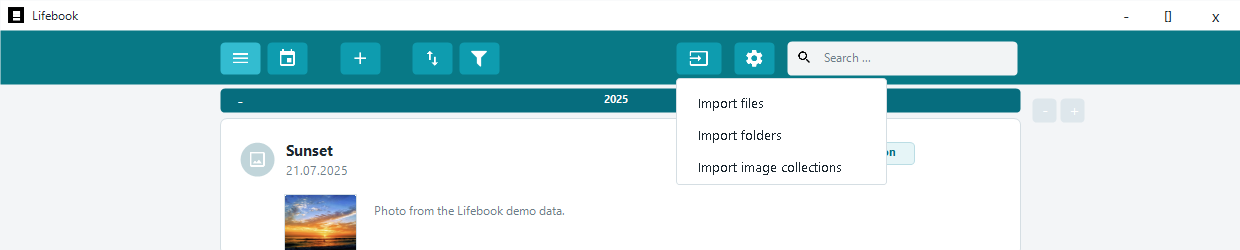
Use it to create text, media, audio, or album entries, or to import files, folders, image collections, and calendar files.
See Import and Export.
Status Bar
The status bar appears at the bottom during longer work such as importing, copying, deleting a large album, or exporting. It shows progress, messages, and import summaries.
Select Cancel to stop an import.
Drag and Drop
You can drag supported files or folders onto the main Lifebook window to import them.