Calendar View
The calendar view arranges entries by date. Use the calendar button in the main menu to open it.
Calendar Controls
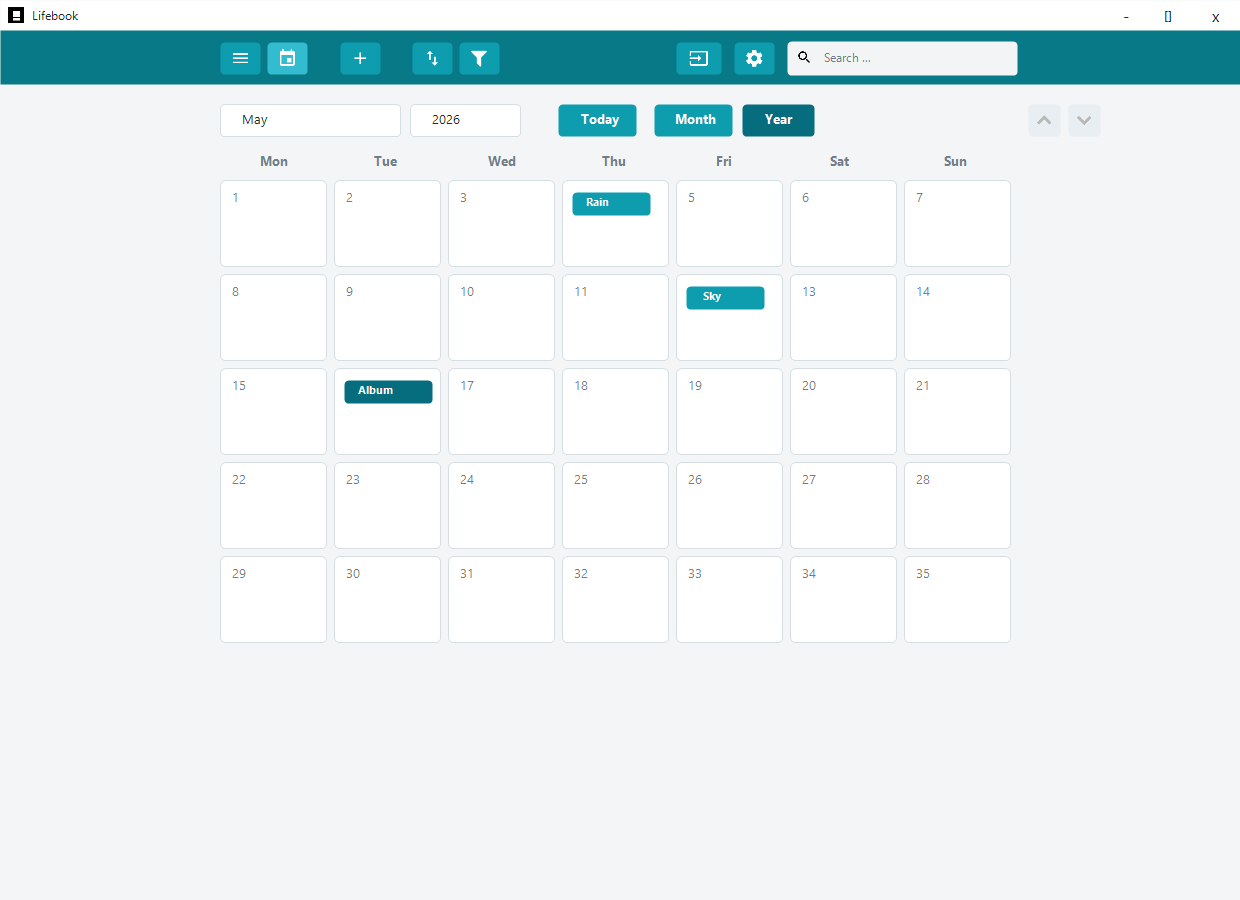
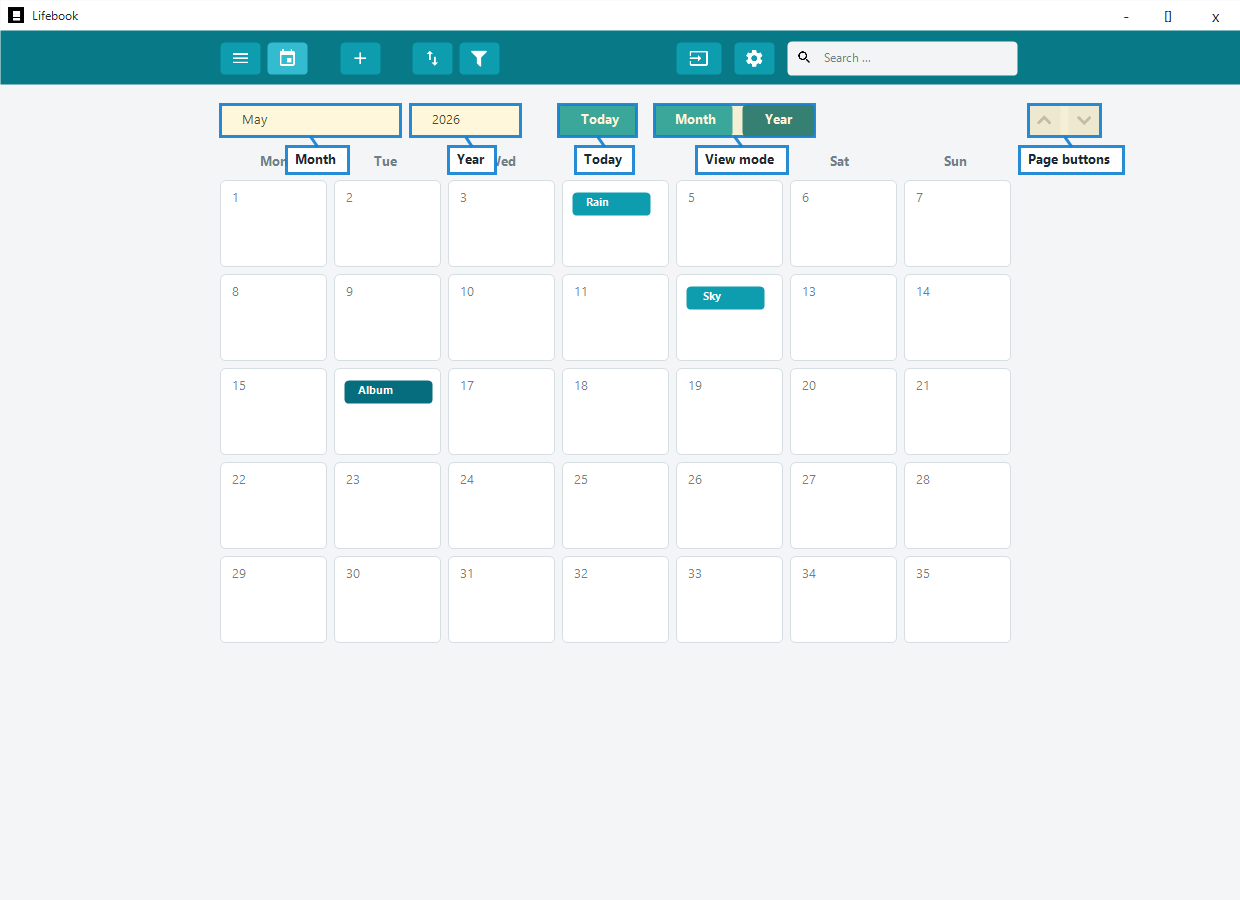
Use the calendar controls to jump by month or year, return to today, switch between month and year view, or page through time.
Month View
Month view shows days in a seven-column calendar grid.
Each day cell can show entry buttons. Select an entry button to open the entry in the overlay view.
When you select a day that contains entries, Lifebook highlights the selected date so it is easy to keep your place in the calendar.
Right-click an entry button to show it in the list, edit it, or delete it.
Adding an Entry From a Day
Select an empty area of a day cell to add a new entry for that date. Lifebook opens the add entry overlay with the selected day already set.
Clicking directly on an existing entry opens that entry instead.
Scrolling Month View
Use the mouse wheel, arrow keys, or page buttons to move through weeks and pages.
If a day contains many entries, the mouse wheel scrolls that day first before moving the whole calendar.
Today
The Today button returns the calendar to the current date.
Today is highlighted in the calendar.
Month and Year Selectors
Use the month selector to jump to a month in the currently displayed year.
Use the year selector to jump to another year. You can type a year or pick from the list.
Stepping Through Periods
Use the arrow buttons either side of the month and year selectors to move one period at a time. The left and right arrow keys do the same.
In month view they move to the previous or next month. In year view they move to the previous or next year.
Stepping stops at the earliest and latest dates Lifebook supports.
Year View
Year view shows all twelve months at once so you can see the whole year at a glance.
Days with entries are highlighted, and today has its own highlight.
Select a month in year view to open that month in month view.
Show an Entry in List View
From a calendar entry context menu, choose Show in list to switch back to the timeline and select the entry there.
From list view, you can use Show In Calendar on an entry to jump back to its date.