Adding Entries
Use Add entry in the main menu or Ctrl+N to open the add entry overlay.
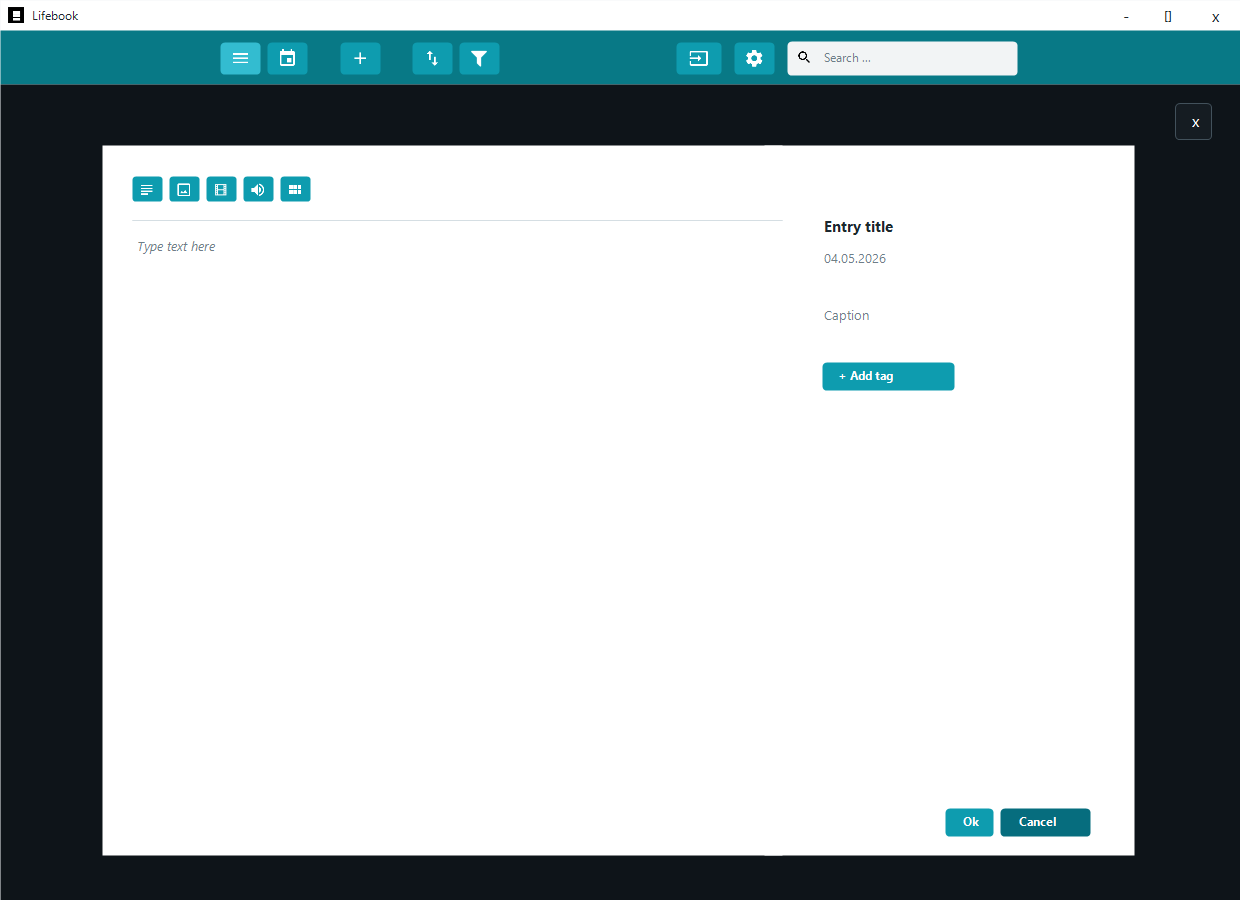
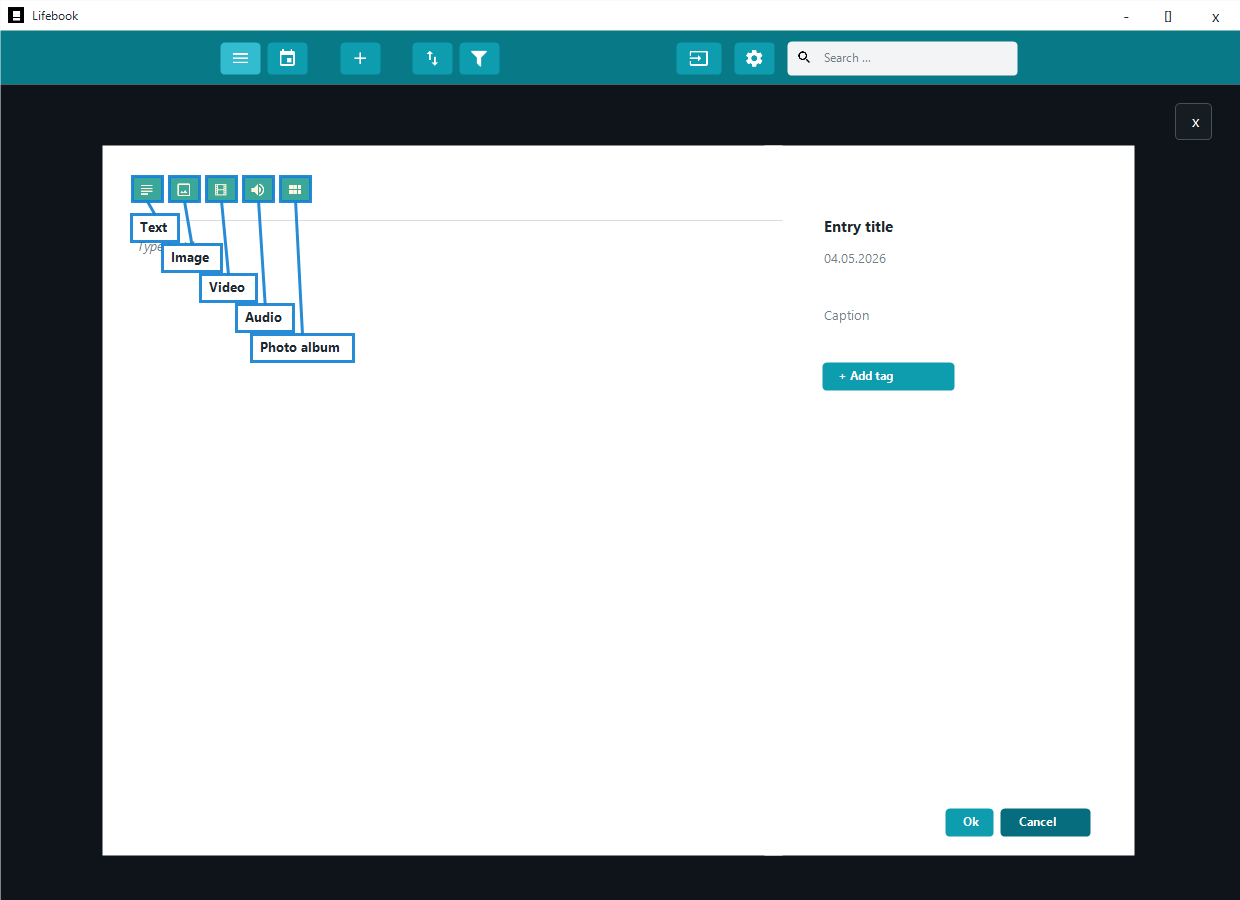
The add entry overlay starts in text mode. The heading shows the type of entry you are creating, and the type buttons at the top let you switch before saving:
- Text
- Image
- Video
- Audio
- Photo album
Common Fields
All entry types share a title, date, caption, tags, and Ok / Cancel controls.
The title is required. Lifebook shows a message if you try to save without one.
After saving an entry, Lifebook asks whether you want to create another entry. If you choose yes, the add entry overlay resets and stays open.
Text Entries
Text entries are written directly in Lifebook.
To create one:
- Choose the text type.
- Enter a title.
- Type the content.
- Add a date, caption, or tags if needed.
- Select
Ok.
Text entries do not require an external file.
Image Entries
Image entries use a selected image file.
To create one:
- Choose the image type.
- Select
Select Image File. - Choose an image.
- Review the preview.
- Edit the title, date, caption, tags, or rotation.
- Select
Ok.
For accepted image types, see Import Files.
Lifebook can import WebP, HEIC, and HEIF images. The Microsoft HEIF Image Extensions package may still help Windows preview HEIC/HEIF files in other apps.
Video Entries
Video entries use a selected video file and show a preview in the media player.
For accepted video types, see Import Files.
Some video files can still fail to play if Windows does not have the required codec.
Audio Entries
Audio entries use a selected audio file and show the audio player.
For accepted audio types, see Import Files.
Photo Albums
Photo albums are collections of image and video files from a folder, or of individual files you pick yourself.
To create one:
- Choose the photo album type.
- Select
Select Folderto add a whole folder, orSelect Filesto pick individual files. - Choose the folder, or the image and video files, to include.
- Review the selected items.
- Edit the title, date, caption, and tags.
- Select
Ok.
Choose a folder or files with supported image or video types.
Automatic Titles, Dates, and Tags
When you select a file:
- The file name is used as the title if the title is still empty.
- Lifebook reads the best available file date.
- Photo capture dates may be used for images.
- Tags can be read from file information where available.
You can change the title, date, caption, and tags before saving.
Copying Files Into Lifebook
In Settings, you can choose whether Lifebook keeps its own copy of image, audio, and video files when you add or import them.
- Turn it on to let Lifebook keep its own copy, so entries are less dependent on the original file location.
- Leave it off to use files from their original location.
Adding From Calendar View
In month calendar view, select an empty day cell to open the add entry overlay with that day selected as the entry date.
See Calendar View.
See also: Edit Mode · Photo Albums and Collections · Import and Export