Photo Albums and Collections
Photo albums collect image and video entries under one timeline entry.
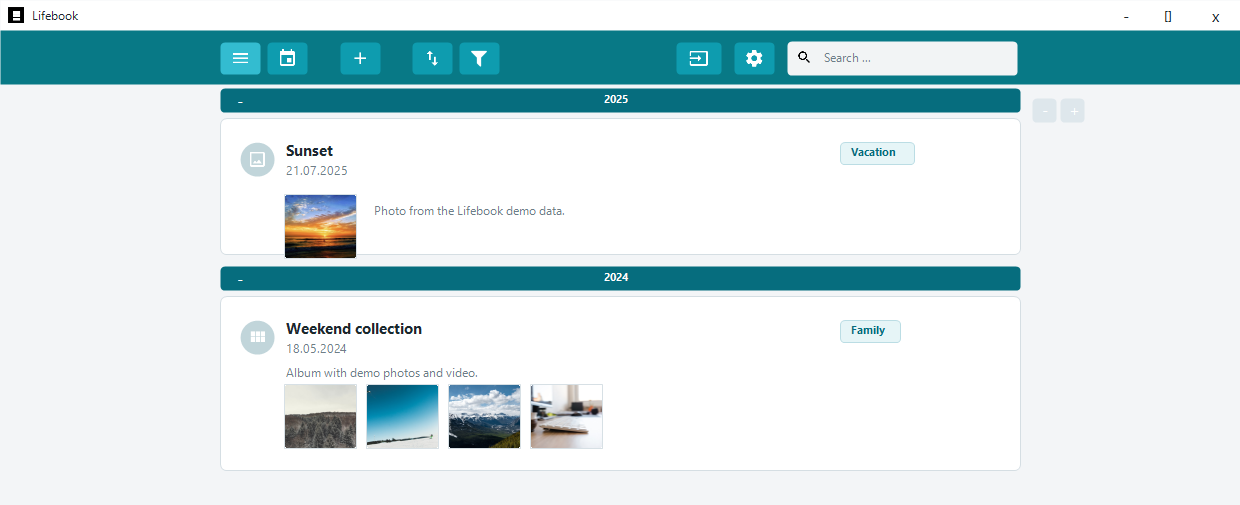
Where Albums Appear
Albums appear:
- As a timeline card with several thumbnails.
- As a calendar entry on the album date.
- In the overlay as a thumbnail grid.
Album items keep their own image or video previews, but the album itself has one title, date, caption, and set of tags.
Creating an Album
You can create albums in three ways:
- Choose
Photo albumin the add entry overlay. - Use
Import Image Collectionsfrom the add entry menu. - Add image/video files to an existing image or video entry and convert it into a collection.
Viewing Album Items
Open an album in the overlay and select a thumbnail to view that item.
Use the left and right overlay arrows to move within the album. Press Escape to return to the parent album.
Editing an Album
In edit mode, you can change album details, add or remove tags, remove individual items, reorder items, or add more image/video files. Save with Ok.
For the full editing workflow, see Photo Albums in Edit Mode.
Moving Entries Into Albums
Use Add To Collection from the overlay, or Move to Collection from the list context menu.
You can:
- Create a new collection and move the current entry into it.
- Choose an existing collection.
After the move, Lifebook opens the destination collection.
Moving an Album Into Another Album
When you move one album into another, Lifebook moves its items into the target album and removes the album that is now empty.
Removing Album Items
In album edit mode, use the remove button on an item.
If removing items leaves an album empty, Lifebook asks whether to remove the album.
Importing Image Collections
The add entry menu can look through folders and import subfolders that contain supported image or video files as albums.
An import is skipped when:
- The folder has already been imported.
- The folder has no supported image or video files.
- Lifebook does not recognize the folder as an album folder.
Large collection imports show a confirmation message and progress in the status bar.