Import and Export
Lifebook can import files, folders, photo albums, calendar files, and Lifebook backups. It can also export backups for restoring later and readable documents for sharing or printing.
On this page: Import from Menu · Drag and Drop · Duplicates · Import Progress · Trial Limit · Restore Backup · Export Backup · Export as Document · Import Calendar
Import From the Main Menu
Open the arrow menu beside Add entry in the main menu.
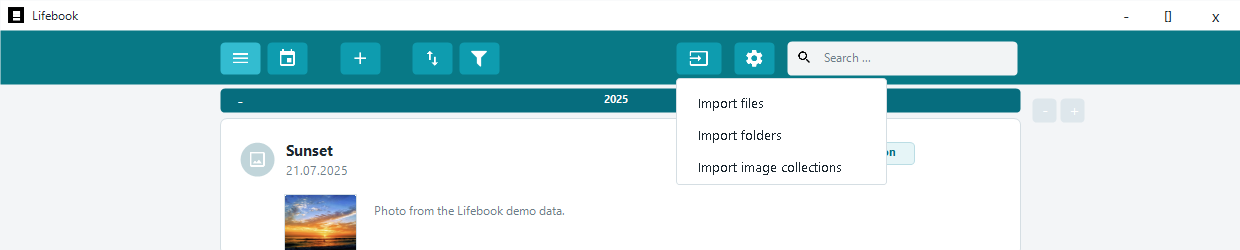
Import Files
Import Files lets you select multiple supported files.
Imported documents become text entries. Lifebook extracts readable text from the document and uses the file name as the entry title. Images embedded inside documents are not imported as separate image entries.
Supported file types:
| Type | Extensions |
|---|---|
| Text documents | .doc, .docx, .txt, .md, .markdown, .eml, .msg, .rtf, .pdf, .odt |
| Images | .bmp, .jpg, .gif, .jpe, .jpeg, .jfif, .tif, .tiff, .png, .webp, .heic, .heif |
| Videos | .mp4, .avi, .mpg, .mpeg, .wmv, .mov, .mkv, .3gp, .m4v, .webm, .mts, .m2ts |
| Audio | .mp3, .m4a, .wav, .wma, .aac, .flac, .ogg, .aiff, .aif, .opus |
Lifebook can import WebP, HEIC, and HEIF images. The Microsoft HEIF Image Extensions package may still help Windows preview HEIC/HEIF files in other apps.
Import Folder
Import Folder lets you choose one or more folders. Lifebook searches them for supported files it can use.
For large imports, Lifebook asks you to confirm before continuing.
Import Image Collections
Import Image Collections looks for album folders that contain supported image or video files and imports each one as a photo album.
For large album imports, Lifebook asks you to confirm before continuing.
Import Calendar From the Main Menu
Import Calendar imports supported calendar files directly from the main menu. Calendar events become text entries, the same as calendar import from Settings.
Drag and Drop Import
Drag supported files or folders onto the main window to import them.
If another dialog, overlay, or import is in progress, finish that first and then drag the files again.
Duplicate and Unsupported Files
Lifebook skips files and photo album folders that are already imported. If nothing usable is found, it shows a message.
Very large documents, corrupt files, and unsupported media formats may also be skipped.
Import Progress and Cancel
During imports, the status bar shows progress. Use Cancel to stop an import.
If you cancel, Lifebook stops importing new items. Items that already finished importing may remain in your timeline.
When an import finishes, the status bar summarizes how many entries or photo albums were imported and how many were skipped.
Trial Import Limit
In trial mode, Lifebook imports only up to the remaining 50-entry limit. If you select more entries than the trial allows, Lifebook tells you how many will be imported and offers a purchase option when available.
Import Lifebook Backup
Open Settings, then use Import in Manage Data.
This restores a .lifebook backup file.
Warning
Importing a backup overwrites all current entries. Export a backup first if you want to keep the current data.
After restoring a backup, Lifebook may ask whether to remove entries whose files are missing from your computer.
Export Lifebook Backup
Open Settings, then use Export in Manage Data.
This creates a .lifebook backup file. Use it when you want to restore Lifebook later or move your archive to another computer.
If you use face recognition, the backup also includes your people, their faces, and your review decisions (confirmed, rejected, and dismissed suggestions). Face crop images are not included in the backup; after a restore, use Scan library for faces in Settings to rebuild them.
Export Entries as Documents
Open Settings, then choose Export As Text File.
The export dialog is grouped into three parts:
- Period — the
FromandTodates.Entire periodis selected by default and covers your whole archive; clear it to set the dates yourself. - Format — the output format.
- Options — whether to include images. Images are included by default; without them an export contains only text entries.
Supported export formats:
- PDF document (
.pdf) - Word document (
.docx) - HTML document (
.html) - Text document (
.txt)
Every export is grouped by year. Word and HTML exports open with a table of contents you can click to jump to a year; in a PDF each year is a bookmark you can jump to from your PDF reader's bookmark panel. Single images are printed as wide as the page.
When images are included, the export includes text, image, and photo album entries. HTML export embeds images in the document. Text export cannot contain images.
Export asks for a folder and starts the export. While an export runs, Cancel stops it; Close leaves the dialog.
Exports are named after the app and the date range, for example Lifebook_2017-06-23_2026-08-23.pdf. If that name is already taken in the folder, Lifebook adds a number instead of replacing the existing file.
After a successful export, Lifebook shows the export location and can open the export folder in Explorer.
Import Calendar Files
Open Settings, then choose Import Calendar.
Supported calendar extensions:
.ics, .vcs
Calendar events become text entries. The event summary becomes the title, the description becomes the text content, and the event start date becomes the entry date.
Duplicate calendar events already in Lifebook are skipped.
See also: Settings · Troubleshooting · Adding Entries