Overlay View
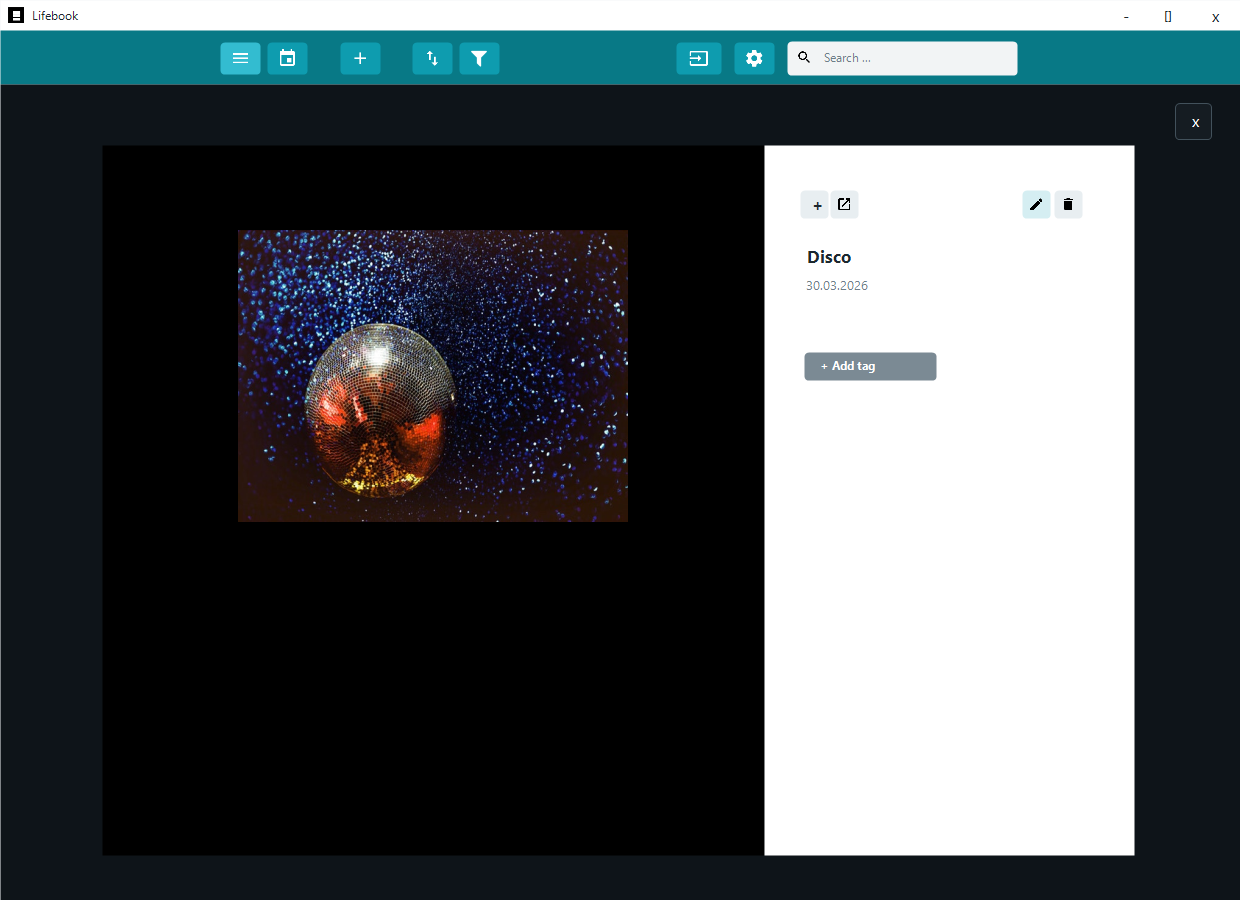
The overlay is the full entry view. It opens above the main screen when you select an entry in the list or calendar.
Opening and Closing
Open the overlay by selecting an entry card, a calendar entry, or an album item.
Close it with the close button in the upper-right corner, Escape, or a click outside the entry.
If the entry has unsaved edits, Lifebook asks whether to save, discard, or continue editing.
Sidebar
The sidebar shows entry details and actions. You can hide it when you want more room for the entry.
Use it to review the title, date, caption, and tags; edit or delete the entry; and use entry-specific tools such as collection actions or image controls.
Entry Navigation
Use the up and down buttons, or the arrow keys, to move through nearby timeline entries.
Navigation follows any filters you have applied.
Collection Navigation
When viewing a photo album, use the left and right arrows to move between album items.
If you open a single image or video from inside an album, Escape returns to the parent album before closing the overlay.
Text Entries
Text entries show the full text content. Matching search terms are highlighted.
Double-click the text content to enter edit mode and place the cursor in the text box.
Image Entries
Image entries show the image scaled to fit the overlay. Use the image controls to zoom in, zoom out, fit the image back to the overlay, or open the original file.
In edit mode, image entries can be rotated right. Rotation is also reflected in thumbnails and albums.
Recognized Faces
If face recognition is enabled, the overlay can draw a frame with a name label around each detected face in a photo. Use the Show recognized faces button in the tool strip to show or hide the frames; clicking a confirmed face's name label filters the timeline to entries with that person.
See Recognized faces on photos for details.
Video Entries
Video entries use the larger media player, with controls for playback, seeking, time, volume, and mute.
The main menu also shows play/pause and mute controls during playback. Closing the overlay stops playback.
Audio Entries
Audio entries use the media player too, with an audio preview panel.
Photo Albums
Photo albums show image and video thumbnails in a grid. Select an item to open it from the album.
In edit mode, the album supports additional collection tools. See Photo Albums and Collections.
Missing Files
If Lifebook cannot find the original file, the overlay shows a recovery message.
For single files:
Search File: choose the file at its new location.Keep entry: leave the entry in Lifebook without reconnecting the file.Delete entry: remove the broken entry from Lifebook.
For collection folders:
Search Folder: choose the folder at its new location.Keep entry: leave the collection in Lifebook without reconnecting the folder.Delete entry: remove the broken collection from Lifebook.
See Troubleshooting.
Tags in the Overlay
Selecting a tag filters the timeline by that tag.
In edit mode, tags can be removed directly or added with the Add Tag dialog.
See also: Edit Mode · Search and Filters · Photo Albums and Collections