Edit Mode
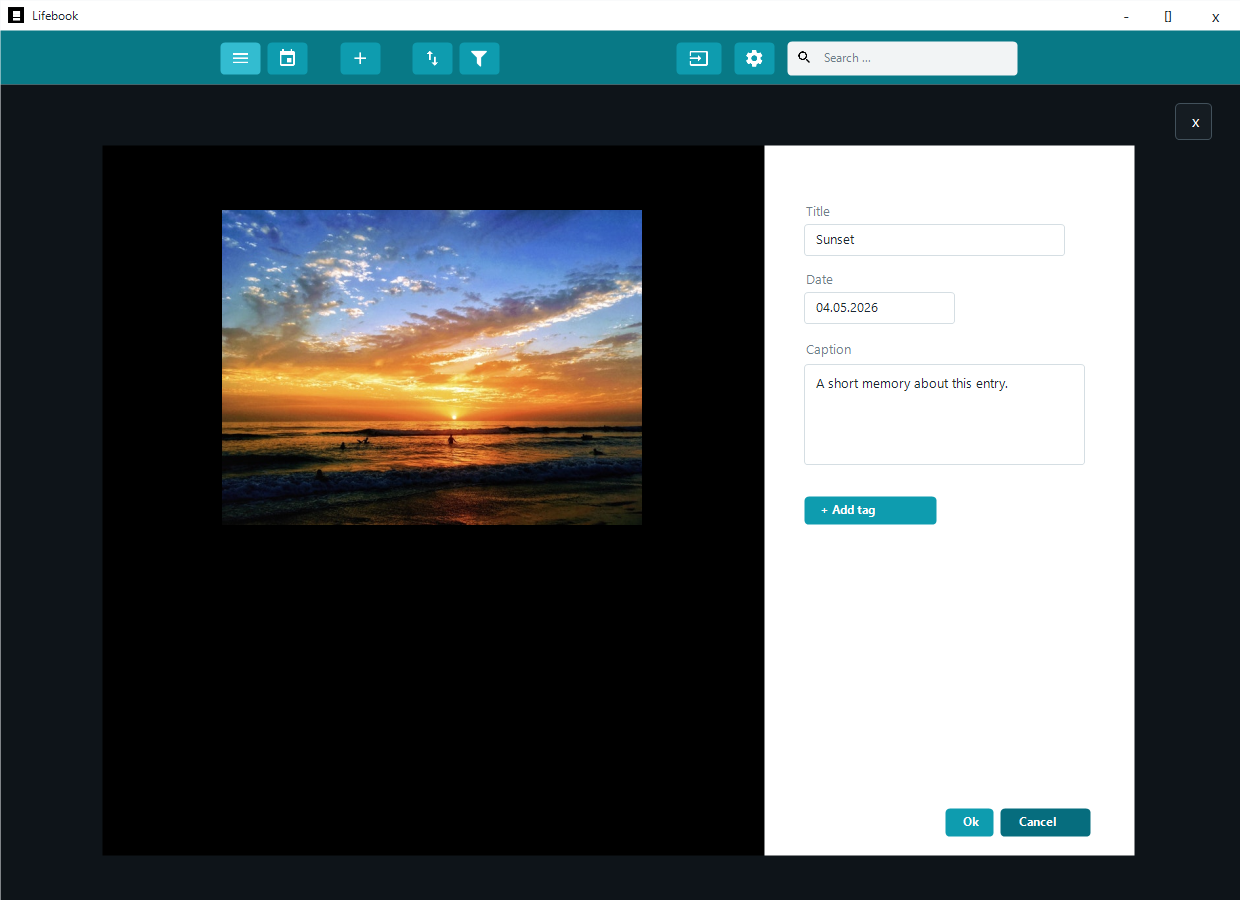
Edit mode lets you change an existing entry or finish creating a new one.
Enter edit mode from an entry card, the context menu, the overlay sidebar, Ctrl+E, or by double-clicking editable text in the overlay.
Saving and Canceling
Use Ok to save or Cancel to leave edit mode without saving. Ctrl+S also saves.
If you try to leave with unsaved changes, Lifebook asks whether to save changes.
Entries cannot be saved without a title.
Main Fields
The title appears throughout Lifebook and in exported documents. When adding a file, Lifebook uses the file name as a title unless you entered your own title first.
The date controls where the entry appears in the list and calendar. Change it with the date picker.
Captions are optional and appear in the overlay sidebar.
Text entries also have an editable content area.
Double-clicking a text entry in read mode starts editing and places the cursor in the text.
Dictation (Speech to Text)
While editing a text entry, a microphone button appears in the top-right of the content area. Use it to dictate instead of typing — Lifebook converts your speech to text on your own computer.
- Select the microphone, or press
Ctrl+Shift+D, and start speaking. The button turns red and the status shows that Lifebook is listening. - Select the microphone again (or press
Ctrl+Shift+D) to stop. Lifebook transcribes the recording and inserts the text at the cursor, so you can keep editing around it. - To throw away a recording without transcribing it, select the cancel (
✕) button next to the microphone. - The recognized text is inserted, not auto-saved — review and correct it, then save the entry as usual.
- If nothing is recognized, Lifebook briefly shows
No speech detectedso you know to try again.
Dictation supports many languages. Advanced offline dictation usually gives the best recognition when Lifebook is set to the language you are speaking. If advanced dictation is turned off, Lifebook uses Windows speech recognition, which works best for English.
First use: one-time dictation download
The first time you use advanced dictation, Lifebook offers to download the offline dictation model. The prompt shows the exact size, usually several hundred megabytes. After the download:
- Dictation works fully offline.
- Your voice is processed on your device and is never uploaded.
- The short recording made while dictating is deleted immediately after it is transcribed.
When the download finishes, start dictation again when you are ready to speak.
If you decline the download, no recording starts. You can download the model later from Settings, or try dictation again when you are ready.
Microphone access
Dictation needs a microphone. In the packaged (Microsoft Store) version, Windows asks for microphone permission the first time. If dictation reports that no microphone was found, check that a microphone is connected and that microphone access is allowed in the Windows privacy settings.
Tags
Use Add Tag in edit mode to open the tag dialog.
In the tag dialog, start typing to filter your existing tags. Click a suggestion to add it, or use the ↓ and ↑ keys to highlight one and press Enter. If nothing matches, Enter (or the + button) creates the typed text as a new tag.
Tags you pick collect under Added Tags, where each chip can be removed again (with an Undo link for the last removal). Select Add tags to apply them to the entry, or Cancel to discard them. Escape first clears the highlight or the typed text, then the collected tags, then closes the dialog.
The dialog avoids adding the same tag twice and tells you when the typed tag is already on the entry.
In edit mode, existing tag chips on the entry become remove buttons.
Images
Image entries can be rotated right. Rotation affects the overlay, list thumbnail, and collection thumbnail.
Media Entries
Audio and video entries can have their title, date, caption, and tags edited like other entries.
When you are editing, typing takes priority over playback shortcuts.
Photo Albums
In album edit mode, you can remove items, reorder them, or add more image/video files.
If removing items leaves an album empty, Lifebook asks whether to remove the album.
Add to Collection
When an entry can be moved into a collection, the overlay shows Add To Collection.
Create a new collection or select an existing one.
After moving the entry, Lifebook opens the target collection.
Convert to Collection or Add Files
For a single image or video, Lifebook can add more image/video files and convert the entry into a collection. For an existing album, the same action adds files to that album.
The file picker accepts images and videos for this action.
Canceling a New Entry
When adding a new entry, Lifebook asks before discarding unsaved work. If Lifebook prepared a new album and you cancel, it removes the unfinished album.