Settings
Open Settings with the gear button in the main menu.
Settings opens over the current view. Close it with the close button or by clicking outside the panel. Wait for exports, imports, and copy operations to finish before closing Settings.
The left column contains the settings categories. Select a category to show its options, or use the search box to find a setting by name.
On this page: General · Dictation · People · App Statistics · Manage Data · Media Copies · Calendar Import · Appearance · User Manual · About
General
General settings include Enable tool tips and Confirm deletion of entries.
If you turn off deletion confirmation, individual entries are deleted without the usual confirmation dialog. Larger actions, such as deleting all entries or deleting a whole year, still ask for confirmation.
Dictation
Dictation settings control speech-to-text for text entries:
Enable speech-to-text dictation: shows or hides the microphone button while editing text entries.Use the advanced AI transcription model: turns on advanced offline dictation for better recognition. When this is off, Lifebook uses the built-in Windows speech recognizer, which works best for English.Offline AI engine: chooses the offline dictation model.Sherpa ONNX + Parakeet v3is the default and is tuned for fast local recognition in 25 European languages.Whisper large-v3-turbohas broader language coverage.Transcription models: shows whether each model has been downloaded and lets you download or remove model files.
If the needed model has not been downloaded yet, Lifebook offers to download it the first time you start dictation from a text entry.
People
The People settings control face recognition for your photos and videos. Lifebook finds faces, groups the ones that appear to belong to the same person, and lets you name people — everything on your device. See People and Faces for the whole feature.
Enable face recognition: turns face recognition on or off. It is on by default. Turning it off removes the People button and stops all face detection; your people and faces are kept in case you turn it back on.- The model status line, which reads Installed · 249 MB once the model is ready. You can remove the model file at any time to reclaim disk space — this also switches face recognition off — and download it again later.
Scan library for faces: finds faces in the photos and videos already in your library. See Scan your existing library.Remove all face data: deletes all people, face signatures, and face images from this device, after a confirmation. See Removing all face data.
If you switch face recognition back on here, Lifebook asks for the model download and then shows a one-time People is now available message with an Open People button.
App Statistics
App statistics gives you a quick overview of your timeline, including entry counts, written words, images, album files, and the mix of entry types.
The numbers are informational only. They do not change your data or usage limits.
Manage Data
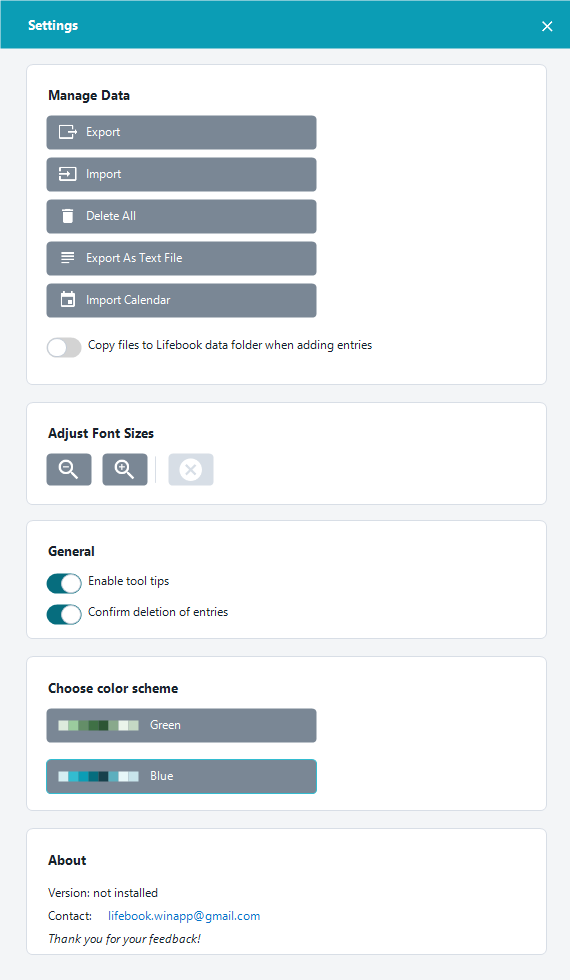
Use Export and Import to back up and restore your Lifebook data. Use Export As Text File to create a readable document you can share or print.
Export
Exports a Lifebook backup file. Use this when you want a copy that can later be imported back into Lifebook.
Import
Imports a Lifebook backup file.
Warning
If your Lifebook already contains entries, importing a backup overwrites all current data. Export a backup first if you want to keep it.
Delete All
Deletes all entries from your Lifebook timeline after confirmation.
Export As Text File
Opens the document export dialog. You can export entries as PDF, Word, HTML, or text documents.
See Export Entries as Documents.
Clean Up Thumbnails
Removes old thumbnail files that are no longer used by any entry. Use this when Lifebook reports unused thumbnails.
Import Calendar
Imports .ics or .vcs calendar files as text entries.
Keep Copies of Media Files
The checkbox Copy files to Lifebook data folder when adding entries controls whether Lifebook keeps its own copy of images, videos, and audio files.
Turn it on when you want Lifebook to keep media files with your archive:
- New media entries are copied into Lifebook's data folder.
- Lifebook is less likely to lose track of files if originals are moved.
- Existing imported media files can be copied too, after confirmation.
- Lifebook shows the data folder location.
Leave it off when you prefer to keep media files where they are:
- Lifebook uses files from their original folders.
- Moving or deleting original files can cause
File not foundmessages.
Note
If there is not enough free disk space to copy existing files, Lifebook cancels the operation and shows a message. The setting stays unchanged.
What Happens When You Delete an Entry
Deleting an entry removes it from your Lifebook timeline. Lifebook never deletes files it uses from their original folders.
Appearance
Appearance contains text size, app theme, and color scheme controls.
Adjust Font Sizes
Use the font size buttons to decrease, increase, or reset app text size.
App Theme
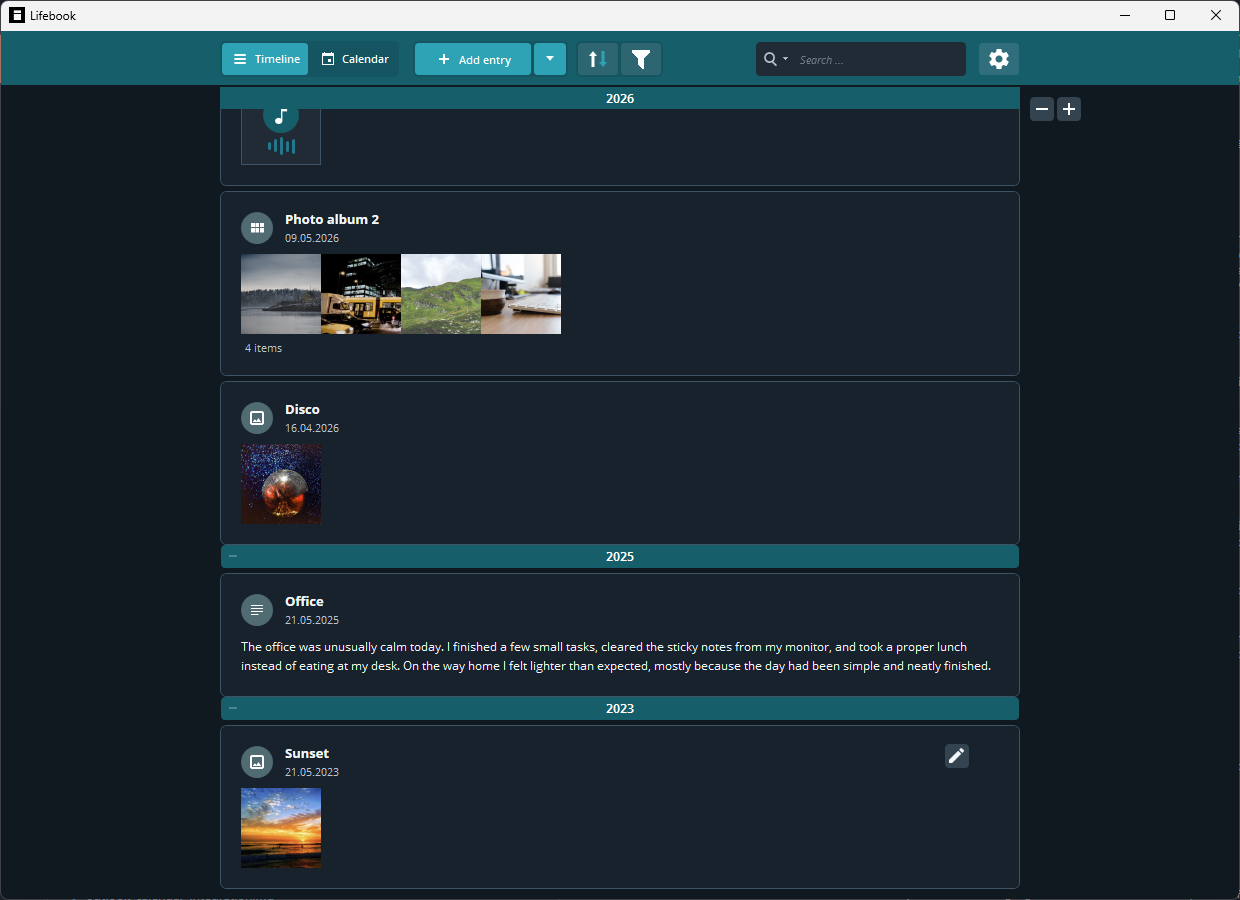
Choose System to use the current Windows app theme and update if Windows switches between light and dark mode while Lifebook is open. Choose Light or Dark to override Windows manually.
Dark mode changes Lifebook's surfaces, dialogs, menus, and text areas to a dark appearance. Your blue or green color scheme remains unchanged.
Color Scheme
Choose between green and blue.
The selected theme applies to main menu accents, selected items, tags, calendar entries, and other highlight colors.
About
The About section shows the app version, help links, purchase option in trial mode, contact email, and feedback message.
In trial mode, use the purchase button to open the Microsoft Store.
User Manual
Use Open manual to open this manual in your browser. It opens in the same language as the app when the manual is available in that language, and in English otherwise. Use Show welcome guide to close Settings and reopen the first-run guide.